
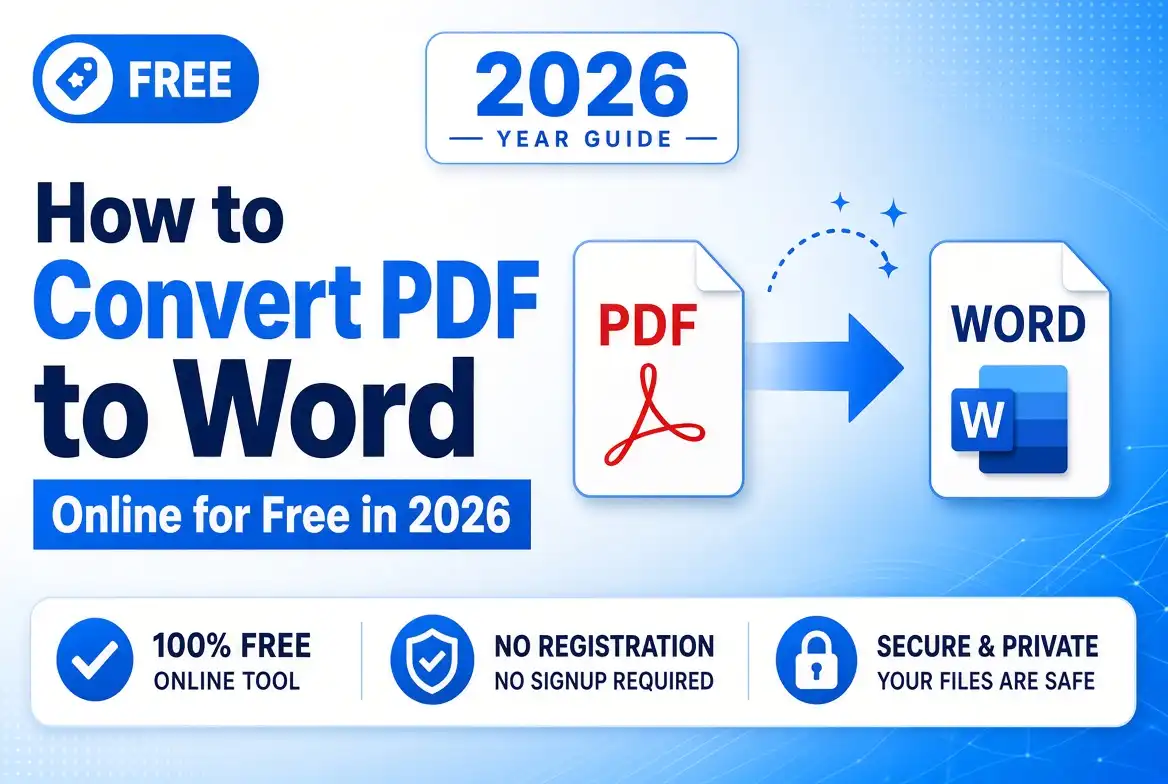
How to Convert PDF to Word Online for Free in 2026
Have you ever received a PDF that you needed to edit, but the document would not let you change the text? That is one of the biggest advantages of converting a PDF to Word.
A PDF is designed to preserve the appearance of a document across different devices, while a Word document is designed for editing. By converting a PDF into a Word file, you can modify paragraphs, correct mistakes, update information, change formatting, and reuse content without rebuilding the entire document from scratch.
The good news is that you can convert PDF to Word online for free without installing complicated software. In this guide, you will learn how PDF-to-Word conversion works, how to convert a PDF into an editable DOCX file, how to handle scanned PDFs, and what to do when the formatting does not look exactly like the original.
1. What Is PDF to Word Conversion?
PDF to Word conversion is the process of transforming a PDF document into an editable Microsoft Word format, usually DOCX. Instead of viewing the PDF as a fixed page, the conversion process attempts to reconstruct its text, images, tables, paragraphs, headings, and other elements inside an editable document.
This is useful when you have a finished PDF but need to make changes. Rather than manually typing everything again, a converter can extract the content and create a Word document that you can edit.
Microsoft explains that Word can open PDFs and create a copy that it converts into an editable Word document. The conversion generally works best with PDFs that are mostly text. :contentReference[oaicite:0]{index=0}
2. Why Convert PDF to Word?
PDF files are excellent for sharing and printing, but editing them can be inconvenient. A Word document gives you much more flexibility when you need to rewrite or reorganize content.
2.1 Edit Existing Text
Converting a PDF to Word allows you to correct spelling mistakes, update dates, change names, rewrite paragraphs, and modify other editable content.
2.2 Reuse Information
If you have an old report, application, proposal, or template in PDF format, converting it to Word can make it much easier to reuse for a new project.
2.3 Modify Formatting
Word gives you control over fonts, spacing, headings, margins, tables, and page layouts. This makes it useful when a PDF needs significant changes.
2.4 Save Time
Manually copying dozens of pages can take hours. A PDF-to-Word converter can automate much of that work.
3. Can You Convert PDF to Word Online for Free?
Yes. Browser-based PDF converters allow you to upload a PDF, process it online, and download the resulting Word document without installing desktop software.
The exact features and limitations depend on the service. Some tools support only certain file sizes or numbers of conversions, while others provide additional PDF tools such as compression, merging, splitting, OCR, and page editing.
Important: Always check the final DOCX file after conversion. PDF and Word use different document structures, so a converted file may not have exactly the same page breaks, spacing, or layout as the original.
4. How to Convert PDF to Word Online for Free
The process is usually straightforward. Most online PDF-to-Word converters follow the same basic workflow.
Step 1: Select Your PDF
Start with the PDF you want to convert. Make sure you have the correct version of the document before uploading it.
Step 2: Upload the PDF
Open your preferred online PDF-to-Word converter and upload the document. Depending on the service, you may be able to select a file from your computer, smartphone, tablet, or cloud storage.
Step 3: Start the Conversion
Select the PDF-to-Word conversion option and start processing the file. The service will analyze the PDF and attempt to reconstruct its content as a Word document.
Step 4: Download the DOCX File
When processing is complete, download the resulting Word document. Save it with a clear filename so you can easily identify the converted version.
Step 5: Open and Review the Document
Open the DOCX file in Microsoft Word or another compatible word processor. Review the pages carefully before making additional edits or sharing the document.
5. What Happens During PDF to Word Conversion?
PDF conversion is more complicated than simply changing a file extension.
A PDF is primarily a fixed-layout format. It stores information about where text, images, and graphics appear on a page. It does not necessarily contain the same structural relationships used by a Word document.
Microsoft notes that PDF files do not always contain information about structures such as paragraphs, tables, and columns in the same way Word does. Word therefore has to interpret the PDF and determine how its content should be represented in the editable document. :contentReference[oaicite:1]{index=1}
Think of it like rebuilding a house from a photograph. You can see where everything appears, but you do not necessarily know how the original structure was constructed.
6. PDF to Word vs Copy and Paste
You can sometimes copy text directly from a PDF and paste it into Word. However, this approach may remove much of the original formatting.
| Method | Best For | Main Limitation |
|---|---|---|
| PDF to Word conversion | Editing an entire document | Formatting may change |
| Copy and paste | Reusing small sections | Formatting can be lost |
| Manual retyping | Very complex layouts | Slow and time-consuming |
| OCR conversion | Scanned PDFs | Recognition accuracy varies |
7. How to Convert a Scanned PDF to Word
Scanned PDFs require a different approach because the pages may contain images of text rather than actual selectable characters.
If you try to convert an image-only PDF using a standard text extraction process, the result may contain little or no editable text.
This is where OCR, or Optical Character Recognition, becomes important. OCR analyzes the visual characters in a scanned page and attempts to turn them into editable text.
Microsoft notes that recognition accuracy depends on scan quality and text clarity, and recommends proofreading converted scanned documents. :contentReference[oaicite:2]{index=2}
7.1 Tips for Better OCR Results
- Use a clear, high-resolution scan.
- Avoid heavily distorted or tilted pages.
- Make sure the text has good contrast.
- Use printed text when possible.
- Proofread the resulting Word document.
8. Can PDF to Word Conversion Preserve Formatting?
It can preserve a significant amount of formatting, but perfect page-for-page reproduction is not guaranteed.
Text-heavy PDFs generally convert more successfully than documents containing complicated graphics, unusual fonts, complex tables, multiple columns, or special PDF elements.
Microsoft specifically notes that a converted PDF may not look exactly like the original, and that some document elements do not convert particularly well. :contentReference[oaicite:3]{index=3}
8.1 Elements That May Change
- Page breaks
- Font spacing
- Tables
- Columns
- Footnotes
- Images
- Page borders
- Text positioning
9. How to Convert PDF to Word Without Losing Quality
There is no universal way to guarantee a perfect conversion, but you can improve your results by starting with a high-quality PDF.
9.1 Use the Original PDF When Possible
If you have access to the original document that was used to create the PDF, converting from that original source can sometimes produce better results than working with a scanned or repeatedly converted copy.
9.2 Avoid Unnecessary Conversions
Converting a document through several different formats can introduce additional layout changes. If your goal is PDF to Word, convert directly whenever possible.
9.3 Review the Final DOCX
Always inspect the final document. Pay special attention to headings, tables, images, page numbers, and footnotes.
10. How to Convert PDF to Word on Windows
Windows users have several options. A browser-based converter can be convenient when you want a quick conversion without installing additional software.
Microsoft Word itself can also open a PDF and create a converted Word document. Microsoft states that Word makes a copy of the PDF during this process, leaving the original PDF unchanged. :contentReference[oaicite:4]{index=4}
This can be useful if you already have Microsoft Word installed and do not want to use a separate online service.
11. How to Convert PDF to Word on Mac
Mac users can use browser-based PDF converters or compatible desktop software. If you have a supported version of Microsoft Word, you can also open a PDF directly in Word and allow Word to convert it.
The same formatting considerations apply. A simple text document is usually easier to reconstruct than a PDF filled with complicated graphics or unusual page structures.
12. How to Convert PDF to Word on Android
On Android, an online converter can be convenient because you can work directly from a mobile browser.
Choose the PDF from your device, upload it to the converter, process the document, and download the resulting DOCX file.
For large documents, a stable Wi-Fi connection can make uploading and downloading more convenient.
13. How to Convert PDF to Word on iPhone and iPad
iPhone and iPad users can access online PDF converters through a mobile browser. PDFs stored in the Files app can generally be selected when a website provides a file-upload option.
After conversion, save the DOCX file to the Files app or another supported storage location.
14. What PDFs Convert Best to Word?
Not all PDFs are equally easy to convert.
Text-heavy documents are generally the easiest. These might include reports, articles, contracts, letters, and simple business documents.
PDFs containing complex page designs, charts, unusual typography, multiple columns, or extensive graphical content can require more cleanup after conversion.
Best-case scenario: A digitally created PDF containing selectable text and a straightforward layout is usually easier to convert into an editable Word document than a low-quality scanned document.
15. Common Problems When Converting PDF to Word
15.1 The Formatting Looks Different
This can happen because PDF and Word handle document structure differently. Check margins, spacing, fonts, and page breaks after conversion.
15.2 Tables Are Misaligned
Complex tables may not convert perfectly. You may need to adjust column widths, borders, and cell spacing manually.
15.3 Images Move Around
Images can behave differently in Word depending on how the converter reconstructs their position and wrapping.
15.4 The Text Is Not Editable
If the PDF is a scanned image, you may need an OCR-enabled converter rather than a standard PDF-to-Word converter.
15.5 Fonts Change
If the original PDF uses fonts that are unavailable or difficult to reproduce, Word may substitute another font.
16. How to Fix a PDF to Word Conversion That Looks Wrong
Do not immediately assume the conversion failed. Sometimes a few Word formatting adjustments can restore a clean layout.
- Check the page size.
- Adjust margins.
- Replace incorrect fonts.
- Resize images.
- Correct table widths.
- Review page breaks.
- Check headers and footers.
- Proofread the extracted text.
17. Is It Safe to Convert PDF to Word Online?
Online conversion is convenient, but privacy should always be considered when uploading documents.
Before uploading a confidential PDF, check the service's privacy and file-handling policies. This is especially important for contracts, identity documents, financial records, medical records, passwords, and confidential business information.
Security reminder: Do not upload sensitive documents to an unfamiliar service simply because it offers free conversion. Understand how uploaded files are processed and handled before using the service.
18. PDF to Word Conversion for Students
Students frequently receive research papers, lecture notes, assignments, and reference documents as PDFs. Converting suitable PDFs to Word can make it easier to highlight, edit, reorganize, and reuse information.
For example, you might convert a text-based research document into Word so that you can reorganize notes or quote relevant sections in a new assignment.
19. PDF to Word Conversion for Businesses
Businesses often work with invoices, proposals, reports, contracts, forms, and other documents that may arrive in PDF format.
Converting a PDF into an editable Word document can make updating templates and repurposing text much faster.
However, important business documents should always be reviewed carefully after conversion, especially when accuracy is critical.
20. PDF to Word Conversion for Freelancers
Freelancers may receive client briefs, proposals, forms, contracts, and project documents as PDFs.
A quick conversion can turn a fixed document into an editable working file, helping freelancers make revisions without recreating the entire document manually.
21. PDF to Word vs PDF Editing
Converting a PDF to Word is not always the same thing as editing a PDF directly.
If you only need to make a small change, direct PDF editing may be faster. If you need to completely rewrite, reorganize, or redesign the document, converting it to Word can provide greater flexibility.
| Task | Better Option |
|---|---|
| Change one word | PDF editing |
| Rewrite several paragraphs | PDF to Word |
| Reorganize a document | PDF to Word |
| Add a signature | PDF signing |
| Extract text from a scan | OCR-enabled conversion |
22. How to Check Your Converted Word Document
Before sharing your new Word document, take a few minutes to inspect it.
Check the Text
Look for missing words, incorrect characters, unusual spaces, or duplicated content.
Check the Layout
Compare headings, paragraphs, margins, page breaks, and alignment with the original PDF.
Check Tables and Images
Make sure tables are readable and images have not moved into incorrect positions.
Check Important Information
Pay particular attention to names, numbers, dates, addresses, prices, signatures, and other information where a conversion error could cause problems.
23. Tips for Better PDF to Word Results
- Use a clear, high-quality PDF.
- Prefer digitally created PDFs over low-quality scans.
- Use OCR for image-based documents.
- Review every important page after conversion.
- Check tables and images carefully.
- Proofread converted text.
- Keep the original PDF as a backup.
- Avoid repeated format conversions.
24. Frequently Asked Questions
Can I convert PDF to Word for free?
Yes. Free online PDF-to-Word converters can transform many PDF documents into editable DOCX files without requiring paid software. The available file size and conversion limits depend on the service.
Can I convert a scanned PDF to Word?
Yes, but scanned PDFs usually require OCR. OCR attempts to recognize text contained in the scanned page and turn it into editable text. Accuracy depends heavily on scan quality.
Will PDF to Word conversion preserve the original formatting?
It can preserve much of the formatting, but perfect reproduction is not guaranteed. Text-based PDFs with simple layouts generally convert more reliably than PDFs containing complicated graphics, tables, or columns.
What is the difference between DOC and DOCX?
DOC is the older Microsoft Word document format, while DOCX is the modern XML-based Word format used by current versions of Microsoft Word. When available, DOCX is generally the preferred output format for modern editing.
Can I convert PDF to Word on my phone?
Yes. You can use a mobile-friendly online converter through a browser. Upload the PDF, convert it, and download the resulting Word document to your device.
25. Conclusion: Convert PDF to Word and Edit Your Documents More Easily
Converting a PDF to Word can turn a fixed document into a much more flexible and editable file. Whether you are updating a business report, modifying a resume, working with study materials, or reusing information from an old document, PDF-to-Word conversion can save significant time.
The easiest approach is often to use a free online converter: upload your PDF, start the conversion, download the DOCX file, and review the result. For scanned documents, choose an OCR-enabled solution to extract the text.
Just remember that PDF and Word are fundamentally different formats. A conversion may change page breaks, tables, images, fonts, or other elements. For important documents, always compare the converted Word file with the original PDF before sharing or publishing it.
Convert Your PDF to Word Online
Turn your PDF into an editable Word document and make changes without rebuilding the document from scratch. Choose a reliable PDF-to-Word converter, upload your file, convert it, and review the result before editing.
Discussion (0)
No comments yet. Be the first to share your thoughts!