

How to Reorder PDF Pages Online Free – Rearrange Pages Instantly
🚀 Reorder PDF pages for free with SmartPDFNow! No sign-up, no watermarks, unlimited use.
Have you ever received a PDF with pages out of order? Maybe a scanned document got mixed up, or a report was assembled incorrectly. Manually fixing the order using desktop software can be complicated, and you might not have the right tools. The solution is an online PDF page reorderer. In this guide, we'll show you how to reorder PDF pages online for free using SmartPDFNow's PDF page reorderer. It's fast, secure, and requires no installation or registration. Let's get your document back in the right sequence.
Why Reorder PDF Pages?
Page order matters for readability, professionalism, and legal compliance. Here are common scenarios:
- Fixing scanned documents: The scanner may feed pages in the wrong order, especially double-sided sheets.
- Combining multiple PDFs: When merging files, you may need to rearrange the combined pages.
- Inserting or removing pages: You might want to move a page from the end to the beginning, or reorder chapters.
- Preparing presentations: Slide order matters; reorganize before sharing.
- Creating booklets or forms: Specific page sequences are required.
Reordering pages online is the quickest way to fix these issues without printing and rescanning.
What to Look for in an Online PDF Page Reorderer
Before choosing a tool, consider these features:
- Drag-and-drop interface: Easily move pages by dragging thumbnails.
- Rotate and delete options: Ability to rotate individual pages or remove unwanted ones.
- No watermarks: Output should be clean.
- No sign-up required: Avoid tools that force account creation.
- Unlimited use: No daily caps or page count limits.
- Privacy: Files should be encrypted and deleted after processing.
- Speed: The reordering should complete in seconds.
SmartPDFNow's PDF page reorderer meets all these requirements. It's free, unlimited, and secure.
Step-by-Step: How to Reorder PDF Pages Online with SmartPDFNow
Follow these simple steps to rearrange your PDF pages:
Go to smartpdfnow.com/reorder-pdf-pages in any web browser.
Drag and drop your PDF file into the upload area, or click to browse from your device. SmartPDFNow accepts files up to 100 MB.
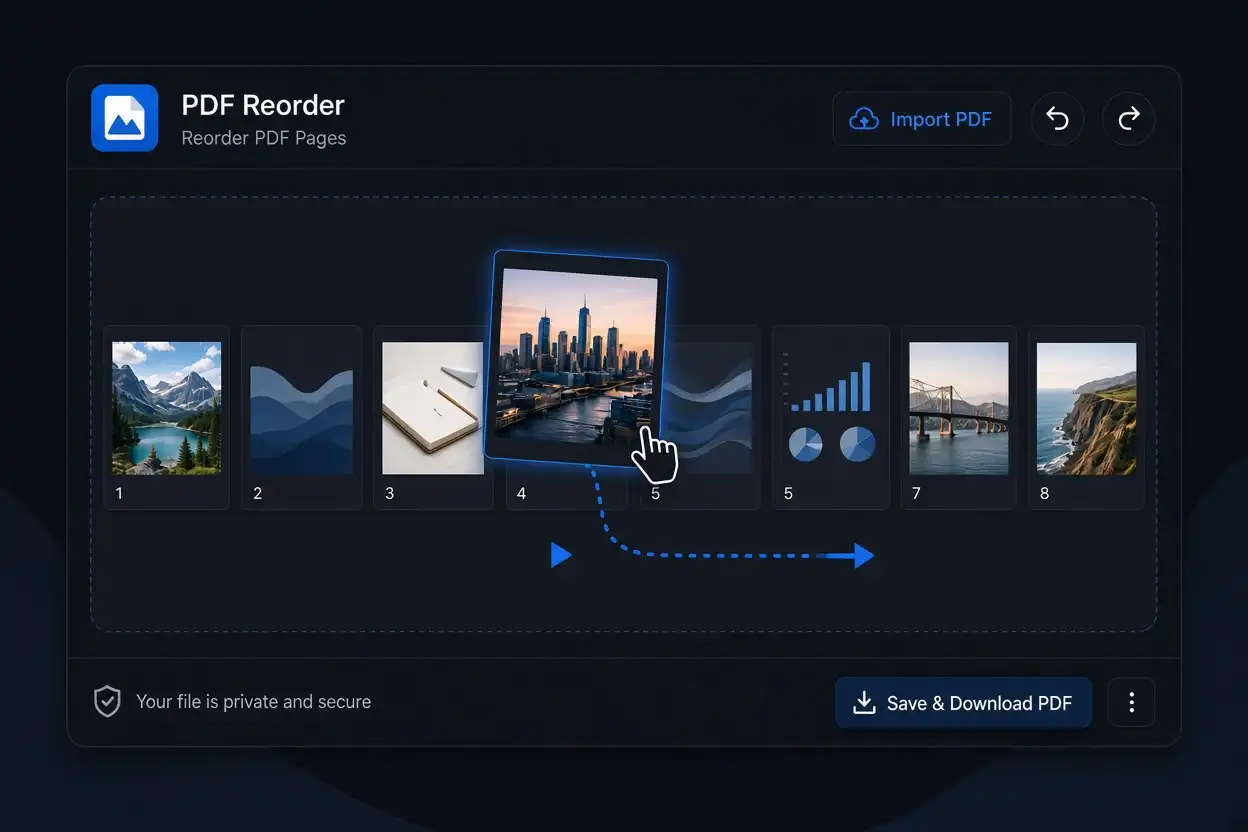
You'll see thumbnails of all pages. Click and drag any thumbnail to a new position. The order updates instantly. You can also rotate pages by clicking the rotate icon, or delete pages using the trash icon.
Scroll through the thumbnails to confirm the new sequence is correct. Make any final adjustments before downloading.
Once satisfied, click the apply or save button. The tool will generate a new PDF with the pages in your specified order.
Save the rearranged PDF to your device. Open it to verify the page order is correct. Your document is now properly sequenced.
Reorder Your PDF Pages for Free Now
Use SmartPDFNow — unlimited, no sign-up, no watermarks.
Reorder PDF PagesReal-Life Example: A Business Owner Fixes a Contract
Ravi, a small business owner in Hyderabad, received a 25-page contract PDF from a vendor where pages 5 and 6 were swapped, and page 12 was upside down. He needed to send the corrected contract to his lawyer quickly. Instead of using complicated software, he uploaded the PDF to SmartPDFNow, dragged page 5 to position 6 and vice versa, rotated page 12, and downloaded the corrected PDF in under two minutes. "It saved me a huge headache," Ravi said. "I didn't have to print anything or ask for a new file."
Tips for Efficient PDF Page Reordering
- Use thumbnail previews. SmartPDFNow shows page thumbnails, so you can visually identify pages.
- Do a final check. After reordering, open the downloaded PDF and flip through to ensure everything is correct.
- Keep a backup. Save the original PDF in case you need to revert or make different changes.
- Rotate pages as needed. If some pages are upside down, rotate them during reordering to save time.
- Use a logical sequence. If you're reordering chapters, keep them in a clear flow.
Frequently Asked Questions
Can I reorder PDF pages online without installing anything?
Yes. SmartPDFNow's reorder tool works entirely in your browser. You can upload, rearrange, and download your PDF without installing any software or creating an account.
Is there a limit to how many pages I can reorder?
No specific page limit. SmartPDFNow handles large PDFs (up to 100 MB). The tool displays all page thumbnails, and you can drag them into any order.
Will reordering pages affect the quality of my PDF?
No. Reordering simply changes the page sequence; it does not compress, resize, or alter the content. The pages remain exactly as they were, just in a new order.
Can I rotate pages while reordering?
Yes. SmartPDFNow includes rotation tools. You can rotate individual pages 90 degrees left or right before applying the new order. This is useful for scanned documents with mixed orientations.
Is it safe to upload my PDF to SmartPDFNow?
Yes. Files are encrypted during transfer and automatically deleted after processing. SmartPDFNow never stores or shares your documents. Your privacy is protected.
Conclusion: Put Your PDF Pages in the Right Order
Reordering PDF pages online is a simple task with the right tool. With SmartPDFNow's free PDF page reorderer, you can drag, rotate, and delete pages in seconds. No watermarks, no sign-up, and unlimited use. Fix your document order today and present a professional file.
Ready to Reorder Your PDF Pages?
Visit SmartPDFNow — unlimited, no sign-up, no watermarks.
Reorder Pages Now
Discussion (0)
No comments yet. Be the first to share your thoughts!