

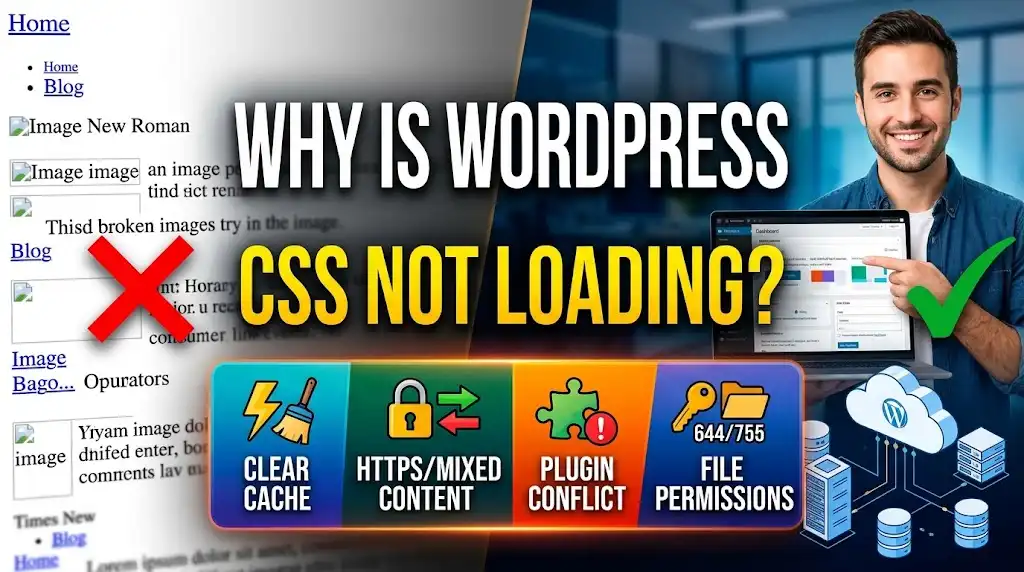
Why Is WordPress CSS Not Loading? – Troubleshooting Guide (2026)
You open your WordPress site and see plain text, no colors, no layout—just a mess. This is a classic symptom of CSS not loading. Whether it happened after a plugin update, theme change, or just randomly, a broken stylesheet can make your site look unprofessional and drive visitors away. The good news? It's almost always fixable, and often in under ten minutes. In this guide, we'll explore the most common reasons why WordPress CSS is not loading and provide step-by-step solutions. We'll include real-life examples, expert opinions, and practical troubleshooting you can do yourself.
Common Causes of WordPress CSS Not Loading
Before diving into fixes, it's important to understand what might be going wrong. Here are the usual culprits:
- Caching issues: Your browser, a caching plugin, or your hosting provider may be serving an old, corrupted version of the CSS file.
- Plugin conflicts: A new plugin or an update may be interfering with stylesheet enqueueing or adding CSS that breaks the layout.
- Theme problems: A broken or missing style.css file, especially after a theme update or if the theme is not properly installed.
- Incorrect file permissions: The CSS file may not be readable by the web server (usually 644 is correct).
- Mixed content errors: If your site uses HTTPS but the CSS is loaded over HTTP, browsers will block it.
- Hard-coded paths or broken URLs: If the theme or a plugin uses absolute URLs, moving your site (or changing domain) can break CSS.
- Minification or optimization gone wrong: Some caching plugins minify and combine CSS; an error in that process can produce a blank or broken CSS file.
- Corrupted .htaccess file: Rewrite rules may block CSS files.
- CDN or firewall misconfiguration: A content delivery network or security plugin might be blocking CSS.
Step-by-Step Troubleshooting: Fix WordPress CSS Not Loading
Step 1: Hard Refresh and Clear Browser Cache
Sometimes the problem is just your browser holding onto an old CSS file. Do a hard refresh by pressing Ctrl+F5 (Windows) or Cmd+Shift+R (Mac). If that doesn't work, clear your browser cache entirely. Alternatively, open your site in an incognito/private window. If the styles appear correctly in incognito, it's a cache issue on your browser.
Step 2: Check If the CSS File Is Actually Missing
View your page source (right-click > View Page Source). Look for lines like <link rel='stylesheet' href='...'>. Copy the href URL and paste it into your browser's address bar. If the browser displays the CSS code, the file exists. If you get a 404 error or a blank page, the file is missing or the path is wrong.
Fix: If the file is missing, re-upload the theme's style.css via FTP or reinstall the theme. If you're using a child theme, ensure it's activated and the parent theme is installed.
Step 3: Deactivate All Plugins to Rule Out Conflicts
Temporarily deactivate all plugins. If the CSS loads correctly after that, a plugin is the culprit. Reactivate plugins one by one, checking the site after each activation, until you find the one causing the issue. Common offenders are caching and optimization plugins (e.g., WP Rocket, Autoptimize), security plugins, or minification tools.
Fix: Update the problematic plugin, or replace it with an alternative. If the plugin was recently updated, roll it back to a previous version.
Step 4: Switch to a Default Theme
Temporarily switch to a default WordPress theme like Twenty Twenty-Four. If the CSS loads correctly, your original theme is the issue.
Fix: Reinstall or update your theme. Check if the theme's style.css is missing or corrupted. If you're using a child theme, verify the template directory and make sure the parent theme is present.
Step 5: Check File Permissions
Via FTP or your hosting file manager, navigate to /wp-content/themes/your-theme/ and check the permissions on style.css. The correct permission is usually 644 (readable by all, writable by owner). If it's set to something else like 000 or 444, that could prevent the server from reading it.
Fix: Change the permission to 644 using your FTP client or file manager.
Step 6: Check for Mixed Content (HTTP vs HTTPS)
If your site uses HTTPS, but the CSS link starts with http://, browsers will block the CSS as "mixed content." View the page source and look for any CSS URLs using HTTP instead of HTTPS.
Fix: Update the site URL in Settings > General to use HTTPS. Also, ensure all references in your theme use protocol-relative URLs or HTTPS. A plugin like "Really Simple SSL" can fix mixed content automatically, but you can also do it manually.
Step 7: Regenerate Your .htaccess File
A corrupted .htaccess can block CSS. Rename your current .htaccess file to .htaccess_backup (via FTP or file manager). Then go to Settings > Permalinks and click "Save Changes" to generate a new .htaccess file. Test your site.
Step 8: Disable Minification/Combining in Caching Plugins
If you have a caching plugin (e.g., Autoptimize, WP Rocket, LiteSpeed Cache), go to its settings and disable CSS minification and CSS combining temporarily. Clear the cache. If CSS loads, the minification process was breaking the file.
Fix: Re-enable features one by one to find the exact setting. Consider excluding the broken CSS file from minification.
Step 9: Inspect the Console for Errors
Open your browser's developer tools (F12) and go to the Console tab. Look for red error messages, especially ones like "Failed to load resource" or "Mixed Content". These will tell you exactly which CSS file is failing to load and why.
Real-Life Example: A Plugin Update Breaks CSS
Lina, a blogger, updated a caching plugin one morning. Immediately, her site lost all styling. She checked the console and saw multiple "Mixed Content" errors. The update had changed the CSS URLs from HTTPS to HTTP. She deactivated the plugin, restored her backup, and then configured the plugin to force HTTPS on all assets. Within minutes, her site was back to normal. Her advice: "Always take a backup before updating plugins, and check your site immediately after updating."
Expert Tips to Prevent CSS Loading Issues
- Use a child theme for customizations so theme updates don't overwrite your changes.
- Keep regular backups of your site files and database.
- Test plugin updates on a staging site before applying them to your live site.
- Use a trusted caching plugin and keep it updated.
- Check after every theme or plugin update that your styles are loading correctly.
Frequently Asked Questions
Why is my WordPress site showing no styling at all?
This usually means the main stylesheet (style.css) is not loading. It could be due to a caching issue, missing file, plugin conflict, or mixed content. Follow the steps above to diagnose.
Can a caching plugin cause CSS not to load?
Yes. Caching plugins often minify and combine CSS. If the process fails or produces invalid code, the CSS file may appear blank or not load at all. Try disabling minification or clearing the cache.
How do I fix mixed content errors for CSS?
Mixed content occurs when HTTPS pages load HTTP CSS. To fix, update your site URL to HTTPS and ensure all theme and plugin assets use HTTPS. You can use a plugin like Really Simple SSL or manually edit URLs in your database with a tool like Better Search Replace.
What should I do if my theme's style.css is missing?
Re-upload the file from the theme's original ZIP, or reinstall the theme. If you're using a child theme, ensure the parent theme is installed and the child theme's style.css has the correct template header.
Can a corrupted .htaccess file break CSS?
Yes. Rewrite rules in .htaccess can accidentally block CSS files. Rename the file and regenerate it via Settings > Permalinks to fix.
Conclusion: Get Your WordPress Styles Back
A WordPress site without CSS looks terrible and harms credibility. But as we've seen, the causes are usually simple and the fixes straightforward. Start with browser cache, then check plugins and themes, and work through the list. With a little patience, you'll have your site looking great again. And remember—always back up before making changes.
Discussion (0)
No comments yet. Be the first to share your thoughts!