

How to Add a Watermark to an Image – Free Step-by-Step Guide (2026)
🚀 Add watermarks to images for free with SmartPDFNow! No sign-up, no watermarks on output, unlimited use.
Whether you're a photographer, designer, blogger, or small business owner, adding a watermark to your images is a smart way to protect your work and reinforce your brand. A watermark deters unauthorized use and ensures that anyone who sees your image knows who created it. But many people think watermarking requires expensive software like Photoshop. Not anymore. In this guide, we'll show you how to add a watermark to an image using free online tools, mobile apps, and professional software—step by step. With the right tool, you can create beautiful, professional watermarks in minutes without any design experience.
Why Add a Watermark to Images?
A watermark is more than just a visual signature. Here's why it matters:
- Protects against theft: Makes it harder for others to use your images without permission.
- Builds brand recognition: Your name or logo becomes associated with your work.
- Promotes your business: A watermark acts as free advertising whenever your image is shared.
- Adds professionalism: A subtle, tasteful watermark can elevate your brand image.
- Prevents confusion: Identifies the creator, especially when images are shared across social media.
Types of Watermarks: Text vs Logo
You have two main options when watermarking:
- Text watermarks: Your name, business name, or a phrase like "© 2026 YourName". Easy to create and customize.
- Logo watermarks: Your brand logo or icon. More polished but requires a pre-made logo file (PNG with transparency works best).
Many tools support both. If you don't have a logo yet, a text watermark is a great place to start.
What to Look for in an Image Watermark Tool
Before choosing a tool, consider these features:
- Support for text and image watermarks.
- Adjustable opacity, size, and position.
- Batch processing: Watermark multiple images at once.
- No watermarks on output: The tool shouldn't add its own branding.
- No sign-up required.
- Privacy: Files encrypted and deleted after processing.
- Cross-platform: Works on any device with a browser.
SmartPDFNow's image watermark tool meets all these criteria. It's completely free, unlimited, and secure.
Step-by-Step: How to Add a Watermark with SmartPDFNow (Online & Free)
Follow these simple steps to watermark your images in seconds.
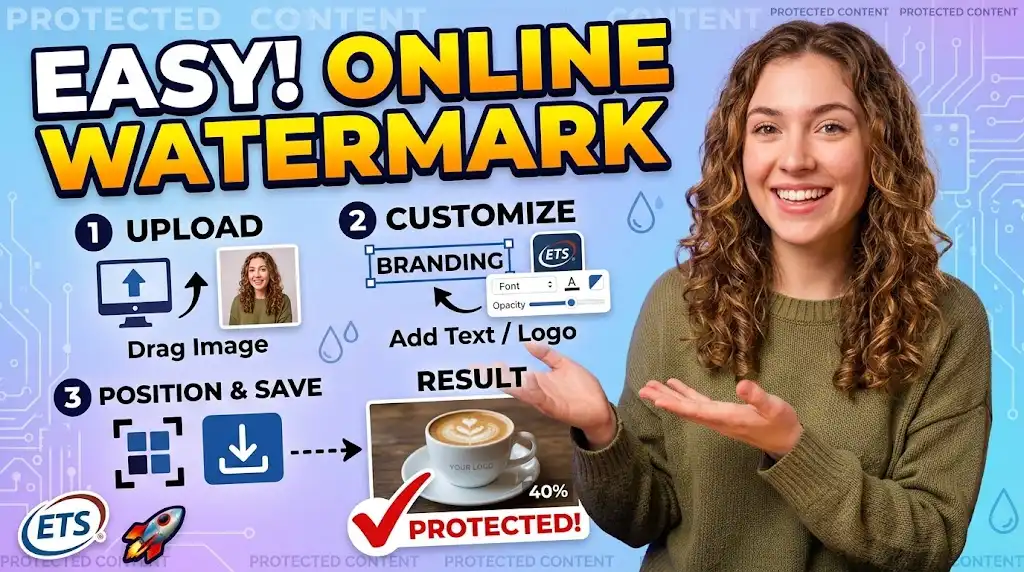
Go to smartpdfnow.com/watermark-image in any web browser.
Drag and drop your image (JPG, PNG, WebP, etc.) into the upload area, or click to browse from your device. SmartPDFNow supports multiple files for batch watermarking.
Select "Text" to add your name or brand, or "Image" to upload a logo. If using text, enter your desired watermark text (e.g., "© YourName 2026").
Adjust the following settings:
- Position: Place the watermark in a corner, center, or custom location.
- Opacity: Lower opacity makes it subtle; higher makes it prominent.
- Size: Scale the watermark relative to the image.
- Rotation: Tilt the watermark for a diagonal effect.
- Font and color: For text watermarks, choose a style that matches your brand.
Click "Apply Watermark" or "Download". The tool processes the image and provides the watermarked version. Save it to your device. Your image is now protected and branded.
Add a Watermark to Your Images for Free Now
Use SmartPDFNow — unlimited, no sign-up, no watermarks on output.
Watermark Image NowAlternative Methods: Using Photoshop or Mobile Apps
Using Adobe Photoshop
If you have Photoshop, watermarking is straightforward:
- Open your image.
- Create a new text layer and type your watermark, or place your logo (File > Place Embedded).
- Position and resize the layer.
- Reduce opacity in the Layers panel.
- Save as JPG or PNG.
Using Mobile Apps
For quick on-the-go watermarking:
- Canva (iOS/Android): Upload your image, add text or logo, adjust transparency, and export.
- eZy Watermark (Android/iOS): Dedicated watermarking app with batch processing.
- Lightroom Mobile: Add text overlays during export.
- SmartPDFNow via mobile browser: The online tool works perfectly on phones—no app install needed.
Tips for Effective Watermarks
- Keep it subtle. A heavy, opaque watermark can ruin the image. Use 30-50% opacity for a professional look.
- Place strategically. Corners are less intrusive, but center watermarks are harder to crop out.
- Use consistent branding. Your watermark should match your overall brand style.
- Don't overdo it. One clear watermark is enough; multiple watermarks look unprofessional.
- Test on different backgrounds. Make sure the watermark is visible on both light and dark images.
- Save a non-watermarked original. Always keep the clean version for other uses.
Real-World Example: A Photographer Protects Her Work
Aisha is a portrait photographer who posts her work on Instagram and Pinterest. She was tired of seeing her photos shared without credit. After starting to add a subtle corner watermark using SmartPDFNow, she noticed an increase in inquiries and followers—people could now identify her as the creator. She batches watermarks 50 photos at a time, and the process takes under five minutes. "The watermark doesn't ruin the photo," she said. "It's just enough to say, 'This is mine.' And it's brought me business."
Frequently Asked Questions
Can I add a text watermark for free?
Yes, many free online tools, including SmartPDFNow, allow you to add custom text watermarks at no cost. You can adjust font, size, color, opacity, and position.
How do I add a logo as a watermark?
Use a tool that supports image watermarks. Upload your logo (PNG with transparent background recommended), then adjust size and opacity. SmartPDFNow has an "Image" option for this.
Will adding a watermark reduce image quality?
No, adding a watermark does not reduce the original image quality. The watermark is overlaid on top, and the underlying image remains unchanged. Some tools may re-encode the image, but with high-quality settings, the difference is negligible.
Can I watermark multiple images at once?
Yes, many tools support batch watermarking. SmartPDFNow allows you to upload multiple images and apply the same watermark to all of them, saving time.
Is it safe to upload my photos to an online watermark tool?
Reputable tools like SmartPDFNow encrypt files during transfer and delete them automatically after processing. For highly sensitive images, use offline software like Photoshop or a mobile app. Always check the privacy policy.
Conclusion: Protect Your Images Effortlessly
Adding a watermark to your images is a simple but powerful way to safeguard your work and grow your brand. With free online tools like SmartPDFNow, you can create professional text or logo watermarks in seconds—no design skills required. Whether you're a photographer, blogger, or business owner, start watermarking today and give your images the protection they deserve.
Ready to Add a Watermark to Your Images?
Use SmartPDFNow — free, unlimited, no sign-up, no output watermarks.
Watermark Image Now
Discussion (0)
No comments yet. Be the first to share your thoughts!