
How to Ask Questions About a PDF Using AI – Complete Guide (2026)
🚀 Chat with your PDFs using SmartPDFNow's AI PDF tool! Free, no sign-up, instant answers.
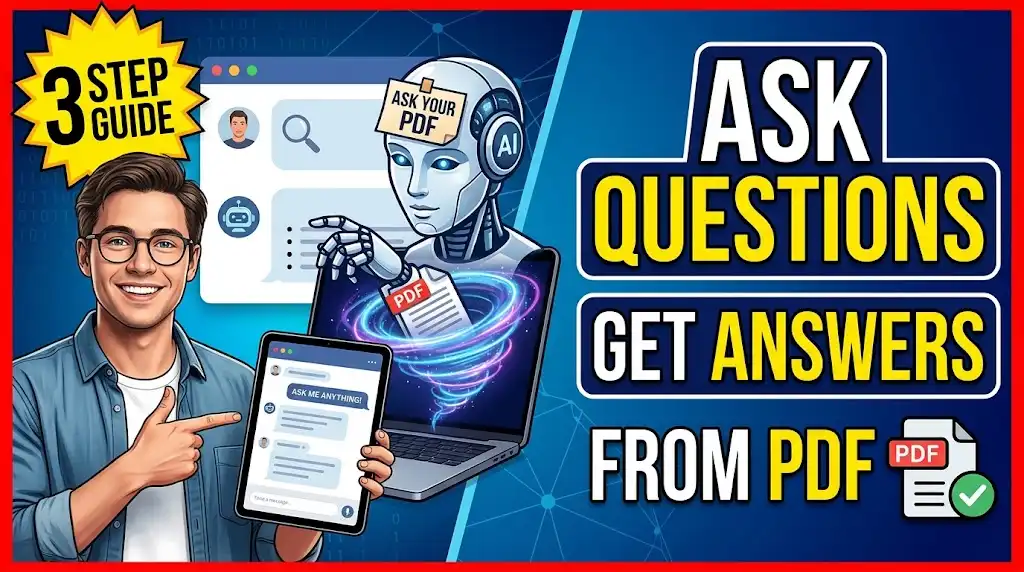
PDFs are everywhere—reports, contracts, research papers, manuals, and ebooks. But extracting specific information from a 100-page PDF can be tedious and time-consuming. What if you could simply ask questions in plain English and get instant answers? That's the power of AI. In this guide, we'll explore how to ask questions about a PDF using AI, the best tools available, and practical tips to get accurate results. Whether you're a student researching a paper, a professional analyzing a report, or just someone trying to make sense of a long document, AI PDF assistants can save you hours.
What Does It Mean to "Ask Questions" About a PDF with AI?
AI-powered PDF tools use natural language processing (NLP) and machine learning to understand the content of a PDF and answer questions posed in conversational language. Instead of searching through pages manually, you can ask:
- "What is the main conclusion of this report?"
- "How many units were sold in Q3?"
- "Summarize section 4 in three bullet points."
- "What are the key differences between option A and option B?"
The AI reads the document, finds relevant sections, and generates an answer—often with citations or page references. It's like having a research assistant who has read every word.
How AI PDF Question Answering Works
Behind the scenes, these tools use a combination of technologies:
- Optical Character Recognition (OCR): If the PDF is scanned or image-based, OCR converts it into searchable text.
- Text extraction and indexing: The AI processes the text, breaking it into chunks and creating a searchable index.
- Large Language Models (LLMs): Tools like GPT-4, Claude, or Gemini process the question, retrieve relevant text segments, and generate a coherent answer.
- Context window management: For long PDFs, the tool retrieves only the most relevant sections to avoid token limits.
Step-by-Step: How to Ask Questions About a PDF Using AI
Follow these steps to get the most out of AI PDF question answering.
There are many options available, from free online tools to premium software. Some popular choices include:
- SmartPDFNow – Free AI PDF chat with unlimited questions.
- ChatPDF – Simple, no-signup tool that lets you chat with a PDF.
- PDF.ai – Offers advanced features like multi-document chat.
- Claude (by Anthropic) – Allows uploading PDFs and asking questions in a chat interface.
- ChatGPT Plus – Can ingest PDFs and answer questions based on them.
For quick, free use, SmartPDFNow or ChatPDF are excellent starting points.
Drag and drop your PDF file into the tool. Most tools accept PDFs up to a certain size (usually 50-100 MB) and number of pages. Wait for the tool to process the document—this can take a few seconds to a minute depending on length and complexity.
The quality of the answer depends on the quality of the question. Instead of asking vague questions like "Tell me about this document," try:
- "Summarize the key findings in section 2."
- "What is the annual revenue mentioned in the report?"
- "List the action items from the meeting notes."
- "Compare the pros and cons of the two strategies discussed."
If the document is long, reference specific pages or sections to help the AI locate the relevant information.
The AI will generate an answer, often with citations or page numbers where the information was found. Always verify the accuracy of critical details by cross-checking with the original PDF. AI can sometimes misinterpret context or produce plausible but incorrect information (hallucinations).
If the answer isn't quite right, ask follow-up questions. You can ask for clarification, more detail, or a different format (e.g., bullet points, table, summary). For example:
- "Can you expand on point 3?"
- "Translate that into a simple table."
- "Give me a one-paragraph summary instead."
Best Free AI PDF Question Tools
Here are some of the top free options available in 2026:
- SmartPDFNow – Completely free, no sign-up, and supports multiple PDFs. Great for quick answers and summaries.
- ChatPDF – Simple and free, works in any browser. Good for one-off questions.
- Claude (Free Tier) – Allows limited PDF uploads and provides detailed answers with citations.
- Bing Chat / Copilot – Can ingest PDFs (via Edge browser) and answer questions.
- Google Gemini – Supports PDF uploads in some regions and offers solid question answering.
For heavy users or advanced features, premium tools like PDF.ai or ChatGPT Plus may be worth the cost.
Real-Life Case Study: A Student Saves Hours on Research
Maria, a graduate student in economics, had a 120-page PDF of a government report for her thesis. She needed to extract specific statistics, policy recommendations, and citations. Instead of reading the entire document, she uploaded it to SmartPDFNow and asked questions like:
- "What is the unemployment rate for youth in 2025?"
- "List the three main policy recommendations."
- "Which page discusses the minimum wage increase?"
Within seconds, the AI provided answers with page citations. Maria then verified the critical numbers and completed her literature review in two hours instead of two days. Her verdict: "AI PDF tools are a game-changer for research. I'll never go back to manual searching."
Expert Tips for Getting Better Answers from AI PDF Tools
- Be specific. Narrow questions produce more accurate answers than broad ones.
- Use keywords from the document. If the report uses specific terms, include them in your question.
- Ask for summaries and lists. "Summarize this section" or "List the top 5 points" often yields concise, useful responses.
- Request page numbers or citations. This helps you verify and locate the original text.
- Break complex questions into parts. If you need multiple pieces of info, ask one at a time.
- Always verify critical data. AI can occasionally hallucinate or misinterpret. Cross-check important facts.
Frequently Asked Questions
Can AI read scanned PDFs with images?
Yes, most AI PDF tools include OCR (Optical Character Recognition) that can read scanned documents and images. The accuracy depends on the quality of the scan. Clear, high-resolution scans produce the best results.
Is it safe to upload sensitive PDFs to AI tools?
Reputable tools encrypt files during transfer and delete them after processing. However, for highly confidential documents, use offline or self-hosted AI solutions, or read the tool's privacy policy carefully before uploading.
How accurate are AI answers from PDFs?
Accuracy is generally high for factual questions, but AI can sometimes misinterpret context or generate plausible-sounding but incorrect answers (hallucinations). Always verify critical information with the original PDF.
Can I ask questions in languages other than English?
Most modern AI PDF tools support multiple languages for both questions and document content. However, accuracy may vary depending on the language and the tool's training data.
Are there free AI PDF question tools without limits?
SmartPDFNow offers completely free, unlimited PDF chatting with no sign-up. Other tools like ChatPDF are free but may have file size or page limits. Premium tools often remove these limits for a subscription.
Conclusion: Unlock the Power of Your PDFs with AI
Asking questions about a PDF using AI is no longer a futuristic concept—it's a practical tool that saves time, reduces effort, and helps you extract insights from documents of any size. By choosing the right tool and asking clear, specific questions, you can transform static PDFs into interactive knowledge bases. Try a free tool like SmartPDFNow today and experience the future of document interaction.
Ready to Chat with Your PDFs?
Use SmartPDFNow's free AI PDF tool — instant answers, no sign-up.
Try AI PDF Chat Now
Discussion (0)
No comments yet. Be the first to share your thoughts!